Ventoy is the answer you’ve been waiting for if you’re sick of the trouble of making bootable USB devices for various operating systems. You may make multi-boot USB sticks with this lightweight and flexible utility by only copying ISO files; no extraction or complicated setup is needed. Ventoy makes the procedure quick and simple, whether you’re reinstalling an operating system, testing a new Linux distribution, or diagnosing your machine. Let’s examine what makes Ventoy revolutionary for creating bootable USBs.
Ventoy: What is it?
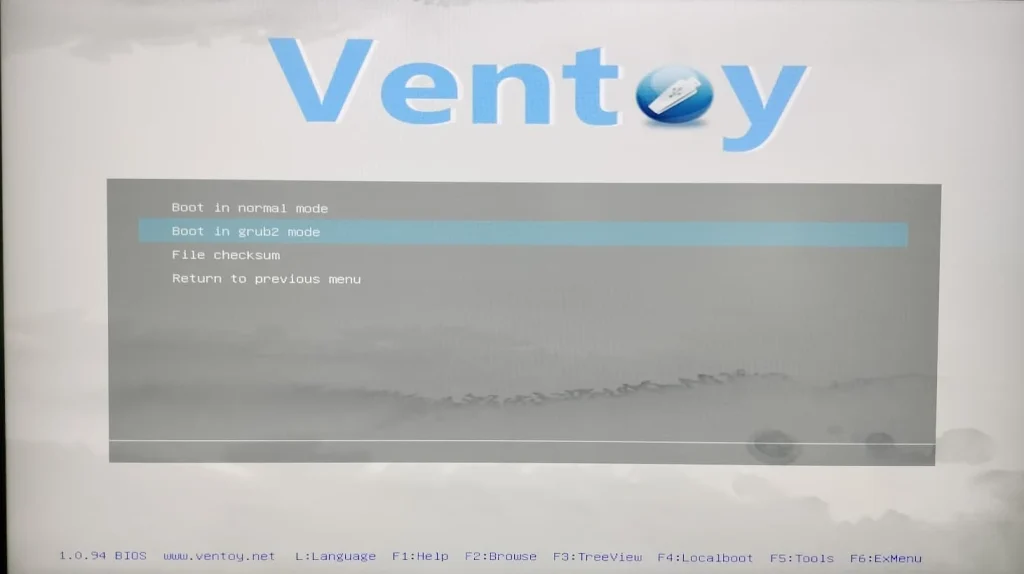
A free and open-source program called Ventoy makes the process of making bootable USB sticks easier. Ventoy allows you to boot directly from ISO files on the USB, in contrast to conventional solutions that need to extract ISO files or format the USB drive. It is compatible with more than 200 operating systems, works with ISO files greater than 4GB, and supports legacy BIOS and UEFI systems.
Important Ventoy Features
Easy & Quick
- No Extraction Required: Boot straight from ISO files without first extracting them.
- Fast Setup: Boot up right away by copying ISO files to the USB drive.
Support for Multiple Boots
- Add as many ISO files as your USB drive can accommodate.
- Boot Menu: During boot, select from a list of ISO files.
Wide Compatibility
- UEFI and legacy BIOS: Compatible with both platforms.
- Secure Boot Support: UEFI Secure Boot compatible (from version 1.0.07+).
- 200+ OS Supported: More than 160 ISO files, including Windows, Linux, and others, were tested.
Preservation of Data
- Non-Destructive: You can continue to save files on your USB device.
- Read-Only During Boot: Prevents ISO files from being accidentally altered.
Advanced Functionalities
- Plugin Framework: Use plugins to increase functionality.
- Upgrade Ventoy’s version without erasing the USB drive’s contents.
Examine Rufus’s features with our guide.
- Why Use Ventoy to Create Bootable USBs?
- Easy to Use: Just copy and boot; no technical knowledge is needed.
- Versatility: A large variety of ISO files and operating systems are supported.
- Efficiency: No extraction is required, making it quicker than conventional equipment.
- Data Safety: Maintains your USB drive’s current data.
How to Utilize Ventoy
- Install and Download: Install Ventoy on your PC after downloading it from the official website.
- Get your USB drive ready by inserting it and starting Ventoy.
- Install Ventoy: To configure Ventoy on the USB stick, click “Install.”
- Copy ISO Files: Transfer ISO files to the USB drive by dragging and dropping them.
- Boot from USB: Choose the USB drive as the boot device after inserting it into the intended computer.
- Choose ISO: From the boot menu, pick the preferred ISO file.
Comparing Ventoy with Other USB Tools for Booting
Although bootable USB sticks may be made with programs like Rufus and Etcher, Ventoy stands out for its:
- Multiple ISO files can be stored and booted on a single USB stick thanks to multi-boot support.
- No Extraction Needed: Boot straight from ISO files without first unpacking them.
- Data Preservation: Make sure your USB drive is still functional for storing files on a regular basis.
- Wide Compatibility: Compatible with Secure Boot, UEFI, and Legacy BIOS systems.
Common Questions (FAQ)
Ventoy: Is it free?
Indeed, Ventoy is open-source and totally free.
Is Ventoy compatible with Linux or macOS?
Indeed, Ventoy works with Linux, macOS, and Windows.
Are ISO files bigger than 4GB supported by Ventoy?
Yes, Ventoy has no trouble handling ISO files larger than 4GB.
Is it possible to put several ISO files on a single USB drive?
Of course! Multiple ISO files can be stored and booted on a single USB stick with Ventoy.
Can I use Ventoy to install Windows 11?
Yes, you can install Windows 11 with Ventoy. Ventoy is a flexible tool for manufacturing bootable USB devices since it works with several operating systems, including Windows 10. These general procedures must be followed in order to install Windows 11 using Ventoy:
- Get the Windows 11 ISO download from Microsoft’s official website.
- Install Ventoy on a different USB disk after downloading it.
- Transfer the ISO file for Windows 11 to the Ventoy USB device.
- Use the Ventoy USB disk to start your computer.
- From the Ventoy menu, choose the Windows 11 installation option.
Ventoy is a useful option for installing and administering Windows 11 with other operating systems if necessary because of its flexibility, which enables you to have numerous operating systems on a single USB drive.
Concluding Remarks
The process of making bootable USB drives is revolutionized by Ventoy. It is the best tool for anyone who has to install or boot operating systems because of its efficiency, simplicity, and adaptability. Ventoy makes the procedure easier than any other tool, regardless of whether you’re an IT professional, IT enthusiast, or casual user.
Are you prepared to easily build bootable USB drives? Get Ventoy now to see the difference!