I want to inform you about a little free software that creates bootable USB flash devices. It should be recognized right away that you will only receive an English user interface; however, you need not be concerned, as the creators have strived to make everything clear and accessible to all users. You receive all the tools you need to transform an ordinary USB drive into a full-fledged environment, so to speak, that can also include many operating systems at the same time. You can download YUMI in full news.
It is worth noting that the program can determine which distributions are best to install on a flash drive, so when working, you will have access to a comprehensive list of links to current operating system builds, such as Linux. Some will be given brief explanations, such as whether the version for a netbook is appropriate or whether this is simply a stripped-down assembly. In general, you will figure it out on your own; if you desire, I will direct you.
In general, YUMI has only one window in which you can work; it is stupidly simple, with nothing superfluous, everything direct and concrete, and you will only need basic English to grasp all of the provided functions. If you choose a specific distribution, you will be given a URL to download it, and you will only need to install the ISO image on your drive. In addition to the ability to write many operating systems to the drive, you can also add various types of system utilities, antivirus apps, and other necessary utilities, which is quite helpful in my opinion.
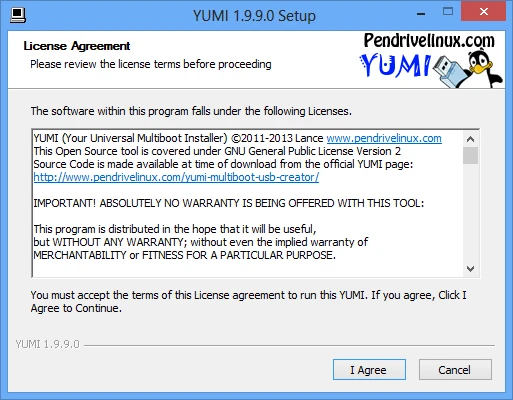
I hope you enjoy YUMI and that the application takes root in our project; after all, it performs a fascinating task while requiring little computer knowledge and taking up no space on your hard drive. This is a brief review, and as always, I welcome your feedback. I hope someone has already used this product.
UEFI
The next version of YUMI UEFI is under development and will boot both UEFI and BIOS using GRUB2. There is no backward compatibility with YUMI. Not all distributions are supported, and the USB must be formatted in FAT32 to boot in UEFI mode. (Only BIOS mode works with NTFS-formatted disks.) Important information about YUMI UEFI: You must disable Secure Boot (if enabled). To boot UEFI, the drive must be formatted as FAT32.
The exFAT version stores all data in the Multiboot folder, resulting in a well-organized Portable Multiboot USB drive suitable for various storage needs. Although YUMI was designed to store and run multiple OSes and “LIVE Linux” utilities from USB, installing Linux from USB to a hard drive is compatible with most distributions.