
Experience the beauty of iFunia Video Editor! This Windows freeware provides an easy-to-use video editing interface. Unlike complicated tools, iFunia keeps things simple without sacrificing functionality. Its basic style allows you to do standard editing operations with ease. This editor is suitable for users of all ability levels, whether they are beginners or professionals. Trimming and merging clips, as well as applying effects and transitions, are all simple ways to transform your films. Say goodbye to difficult interfaces and hello to smooth editing. Download iFunia Video Editor from the developer’s website today and discover a world of creative possibilities for your videos!
Create Engaging Videos in Minutes for Beginners.
- Trim, crop, and rotate videos for complete creative control.
- Use color correction, color grading, or filters to achieve a professional look.
- Watermark videos to prevent unauthorized use.
- Include subtitles that are easy to read and match the audio.
- Adjust the volume to get a well-balanced sound.
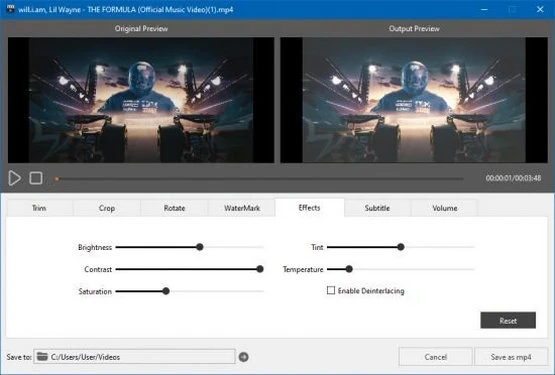
Features of the iFunia Video Editor
Basic Video Editing: Get Started Quickly
Trim, crop, and rotate your videos to maximize their potential. Make it appear more concise, streamlined, and organized.
Trim Video
Trim the video at the start, end, or both. Help remove unwanted intros, outros, commercials, and other filler, or trim the video for social media sharing.
Crop Video.
Cut out a portion of your video’s picture. Help remove superfluous elements such as watermarks and black bars. Also, change the aspect ratio to 16:9, 4:3, or any other to fit YouTube, TikTok, Instagram, Twitter, various devices, and more.
Rotate video.
Rotate the movie by 90, 180, or 270 degrees clockwise or counterclockwise. Flip the video vertically and horizontally. Help to fix the alignment or generate a better visual effect.
Manually adjust colors or apply built-in effects directly.
The video editor includes color correction, color grading, and ten well-selected filters. Restore and improve your video’s appearance. Instantly transform it from ordinary to amazing.
Text and Image Overlay: Create a Storytelling Video
Protect your copyright and origin. Improve how you express your message.
Add Watermark to Video
- Add a text watermark. Specify the font, size, color, and location.
- Import a picture watermark. Drag the edges to resize, then place it wherever you want.
- Adjust the transparency of the text or image watermark as required.
Add Subtitles to Videos
- Apply embedded subtitles encoded into the video. They are permanently burned into your movie and cannot be deleted or turned off.
- Upload and display external SRT, ASS, and SSA subtitles at the bottom.
Simple Audio Editor: Boost or Lower the Sound in the Video
Give your video a more seamless, delightful listening experience.
- Adjust the audio volume for the entire track. Drag the slider to the right to raise the volume. Drag to the left to decrease the volume.
- Partially adjust the audio volume. Choose the duration of the fade-in and fade-out from 1 to 3 seconds. Smoothly transition in and out of the audio.
Preview, export, and share
video footage with a single click. Share here, there, and everywhere.
Real-time previews of video editing results allow for improved control and optimization of the video. Once you’ve finished your edit and are satisfied with it, export the video as an MP4. Now, tell the world your tale by sharing it on any social media platform.