
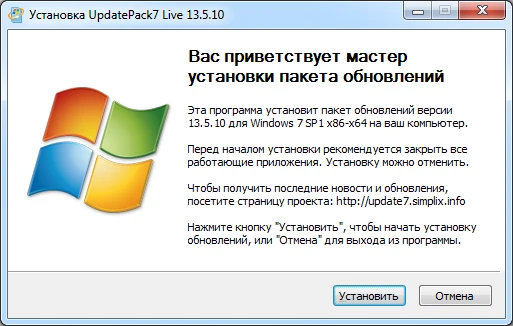
UpdatePack7R2 is a package created by user simplix on the OSzone forum that updates your system and may be included in your distribution. If you’re running any version of Windows 7 or 2008 R2, you can install it without worry of issues, regardless of bitness or language. You will receive all required updates for all versions of Internet Explorer, as well as necessary, recommended, and security updates.
How To Use This Package:
The system should have at least 10 GB of free hard drive space and 1 GB of free RAM. For flexible installation, you can use the following keys and combinations:
- The /Reboot key allows for an automated reboot if necessary.
- The /S switch enables an entirely silent installation with no windows or messages. The case is essential.
- The /Silent key enables passive installation, meaning progress is displayed, but the installation is fully automatic.
- The /IE11 key installs and localizes Internet Explorer 11.
- The /Temp= switch lets you provide a temporary working directory. It does not have to be empty; nonetheless, it must exist.
- The /NoSpace command bypasses the system partition’s free space check; however, it is not recommended.
- If the SmartFix.zip file is next to the set, the /SmartFix switch integrates it into the system restore tool.
- The /NoUSB switch prevents USB 3.0 and 3.1 drivers from being integrated into the system distribution via the Win7USB3 project.
Examples:
- You should automatically install all updates, IE11, and restart the computer: UpdatePack7R2.zip /Ie11 /Silent /Reboot
- You should secretly install all updates to existing products, do not change the IE version, and do not restart the computer. UpdatePack7R2.zip (S)
The following keys are used to integrate changes into the distribution:
- The /WimFile= switch specifies the location of the WIM file, which must be an absolute path.
- The /Index= key defines the system index in the wim file; each index requires a separate integration.
- The /Index=* switch allows you to integrate updates one at a time across all indexes in the WIM file.
- After integrating updates, use the /Optimize switch to optimize the WIM file size.
Notes:
Before specifying the index, run the following command: Dism /Get-WimInfo /WimFile:C: install.wim (change the path to your own).
Examples:
- You have to combine IE11 and all updates into one index: UpdatePack7R2.zip /ie11 /WimFile=C: install.wim /Index=1.
- You must include IE11 and all updates in all indexes: UpdatePack7R2.zip /ie11 /WimFile=C:install.wim /Index=*
- You need to integrate updates into existing products, without altering the IE version: UpdatePack7R2.zip /WimFile=C: install.wim /Index=1
Additional features:
- If SP1 has not yet been installed on the system, it can be deployed automatically. To accomplish this, place the Windows6.1-KB976932-X86.zip and Windows6.1-KB976932-X64.zip files in the same directory as the service pack.
- If there is an UpdatePack7R2Start.cmd file next to the update package, it will be run before installing updates, followed by UpdatePack7R2Finish.cmd and UpdatePack7R2Wim.cmd. By default, console windows will be displayed. To conceal them, the first line of the cmd file must start with “: hide” (without quotation marks). The update package analyzes the exit code from the cmd files to determine whether a reboot is required. This code is 3010 (exit 3010).
- If you wish to apply your adjustments after installing Internet Explorer 11, place the ie11.zip file in the set’s folder, and it will be imported automatically.
- Some keys can be replaced simply by renaming the package file. For example, to install Internet Explorer 11, you can include the term “ie11” anywhere in the package file name, “–” for automatic reboot, and “++” for passive installation.
Examples:
- You must automatically install the program on the working system along with IE11 and restart the machine. Rename UpdatePack7R2.zip as UpdatePack7R2–IE11++.zip.
- This will be precisely the same as using the following keys: UpdatePack7R2.zip /Ie11 /Silent /Reboot.
This is vital to know.
- The size of the installed updates will increase the distribution’s (WIM file) size.
- Integrated updates can be removed even after the system has been installed.
- It is advised that you unload the resident antivirus monitor from memory while the suite is operating.
- The %WinDir%UpdatePack7.log file contains a complete installation report for updates.
- Installation on a working machine will be done in stages with reboots.