VectorStyler is a powerful yet easy-to-use software for creating digital art and graphics. It’s ideal for creating excellent logos, eye-catching icons, unique graphics, and stunning typography. Whether you’re making a website, a poster, or a t-shirt, VectorStyler provides all of the tools you need to bring your creative vision to life.
The best thing about vector drawings is that they never lose quality, regardless of how much you zoom in or scale them. VectorStyler makes it simple to work with these types of visuals. You receive extensive drawing tools, precise controls, and incredible live effects, allowing you to experiment freely. You can rapidly change colours, shapes, and styles without having to start anew. It’s the ideal tool for both novices learning design and pros working on their next major project.
Features of VectorStyler:
All drawing tools without subscriptions
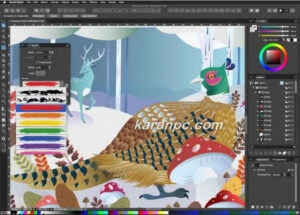
VectorStyler includes a comprehensive collection of drawing, design, and illustration tools required for current design. VectorStyler’s several new features redefine and expand the tools available to illustrators and designers, making it easier to create complicated images and designs.
Shape Effects
Create and adjust non-destructive shape effects for individual or grouped objects. Shape effects can be used to change the shape of items, create distortions, or add detail. Shape effect parameters can be changed interactively on the canvas. Use parametric distortion effects to alter the shape of things. Create a mesh, envelope, or elastic warp effect to fine-tune warp distortions. Create dynamic form offsets and tweak them interactively on Canvas. The Shape Effects panel allows you to create and change numerous effects on selected objects.
Image Effects
Apply live visual effects to vector objects and groups. Choose from more than 100 image effects, each with several settings. Image effects are non-destructive and can be adjusted or removed at any time. Adjust image effect parameters interactively on the canvas for greater visual control. The Image Effects panel allows users to create and alter image effects. All image effects are active, while vector objects and shapes remain modifiable. Combine numerous image effects to create unique filter compositions. Import and apply SVG filter compositions directly from the Image Effects window.
Vector Brushes
Make and modify real vector brushes. The content of a vector brush is a collection of editable vector objects stretched along the shape by various brush kinds. VectorStyler lets you import and use all Adobe Illustrator brush types. Vector brushes can be divided into four types: artistic, pattern, scatter, and bristle brushes. Artistic brushes stretch a group of vector objects along a shape determined by the brush choices. Vector brushes can be used with calligraphic pens and variable-width profiles to control brush width.
Advanced Typography
Set up complex text formatting using text frames or point text. Text can flow over numerous linked frames, artboards, and canvases. Text frames can have several columns, and the columns can be balanced. Text can flow inside and around any form. The multi-line paragraph composer is recommended for excellent paragraph-wide text layout. Anchor point text to a path and update its positions as the path changes. Use the node tool to directly alter the baseline of a point text into any shape, as well as to produce text with path effects. Create and modify right-to-left or bidirectional (Unicode) text.
VectorStyler, a native Windows (Intel) application, requires Windows 10 to run. A minimum of 8GB system memory is recommended. Having more memory is beneficial for generating intricate drawings and graphics. Only Windows 10 and subsequent versions are supported. VectorStyler relies heavily on many threads, so an Intel Core i5 or i7 processor with four cores and hyper-threading is recommended. To activate GPU acceleration, go to Settings / Performance and pick OpenCL (any GPU supported by Windows) or NVIDIA mode for Nvidia GPUs.