
Drummerdp created the Grub2Win application. This free, open-source application safely boots multiple operating systems from a single device. It has a boot manager that lets users boot from various operating systems each time they turn on their machine.
Grub2Win includes a boot manager that lets you boot multiple operating systems each time you turn on your computer.
Grub2Win operates similarly to other multi-boot tools such as YUMI and Rufus. What you will appreciate about the application is that it safely dual-boots without modifying the Windows Master Boot Record. It also resides on your system’s primary partition rather than portable storage. However, the UI design may be improved.
What is Grub2Win?
Boot managers are handy for running several operating systems on a computer. They let you install a new operating system without completely removing the current one. It installs the latest operating system in a separate partition and enables you to choose which to boot each time you turn on your device. It also reduces the likelihood of potential confrontations.
Grub2Win is an application that serves as a boot manager. As previously said, it allows you to boot from a new operating system each time you turn on your computer. Not only that, but it also allows you to preview many themes before activating them. It also supports a variety of file systems, including complex ones such as Btrfs and Mac HFS. It also works with BIOS- and EFI-based systems.
Furthermore, the software eliminates the need to create configuration files manually. It even lets you import other configuration files and merge them yourself. And, unlike other options, it saves it to your local C drive. It also uses a central directory to store all configuration and setup files, making them easier to find.
Works with EFI settings.
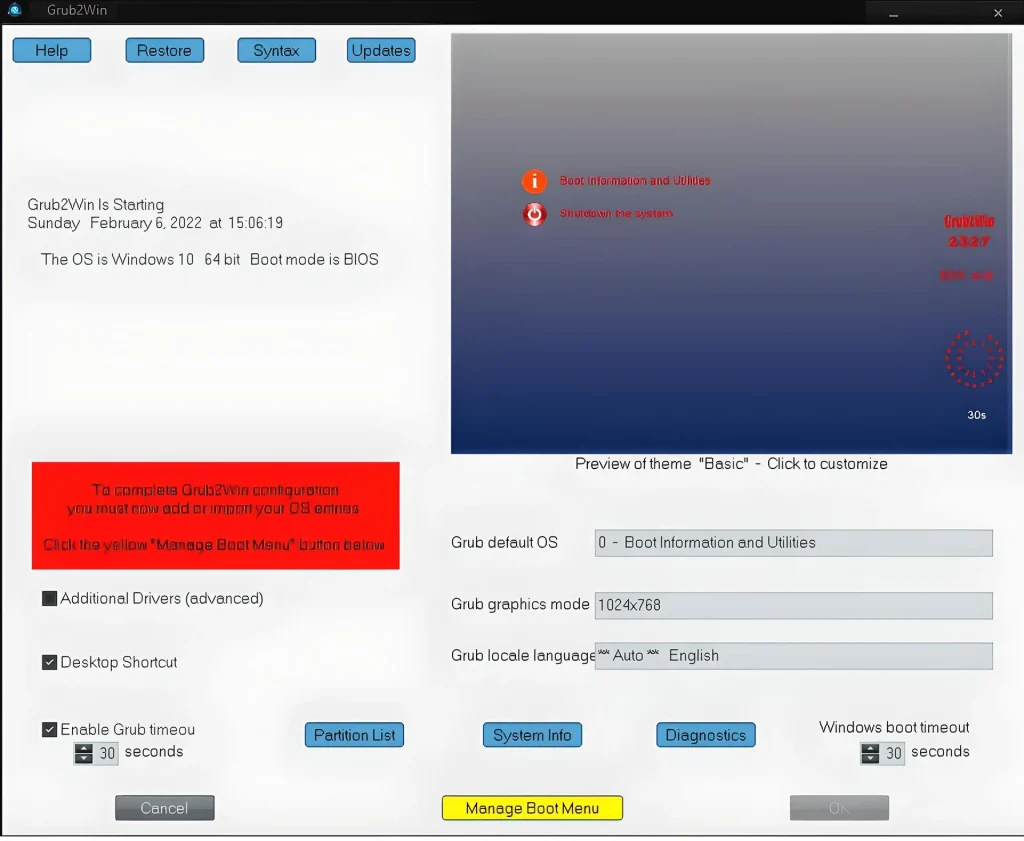
If you assumed this program was out of date based on its initial appearance, think again. This application can easily help individuals modify the EFI boot sequence, but you must disable Secure Boot to use it. This program includes many settings and features you can explore. You can check the partition list, retrieve system information, and run diagnostics to ensure everything is in order.
This program’s primary window also allows the user to increase or decrease the length of boot time. An extra feature called Grub timeout has been added, which controls the number of boot parameters available when using the Grub interface to switch between operating systems. Additional drivers can be provided if needed. A desktop shortcut may also be generated. A recovery feature has also been included in the program structure.
What does it do?
The program modifies your device’s boot sequence and displays its own menu at startup. The user can customise how this menu behaves at login, arrange the items, apply hotkeys for quick access during boot, and add new bootable operating systems to the list. The dedicated button allows you to import Linux settings. Once you’re satisfied with your order, click the Apply button and reboot to see if everything works as it should.
As a result.
Overall, Grub2Win is an excellent application that runs silently on your system’s first primary partition. And uses up little room. It also includes a variety of themes for you to select from. In this manner, you ensure you don’t tamper with the Windows MBR code and that your partitions don’t become jumbled, causing a tremendous headache.